Changing your password
This article provides information on how to change your password in the Owner’s Portal.
1. Click  in the top right corner
in the top right corner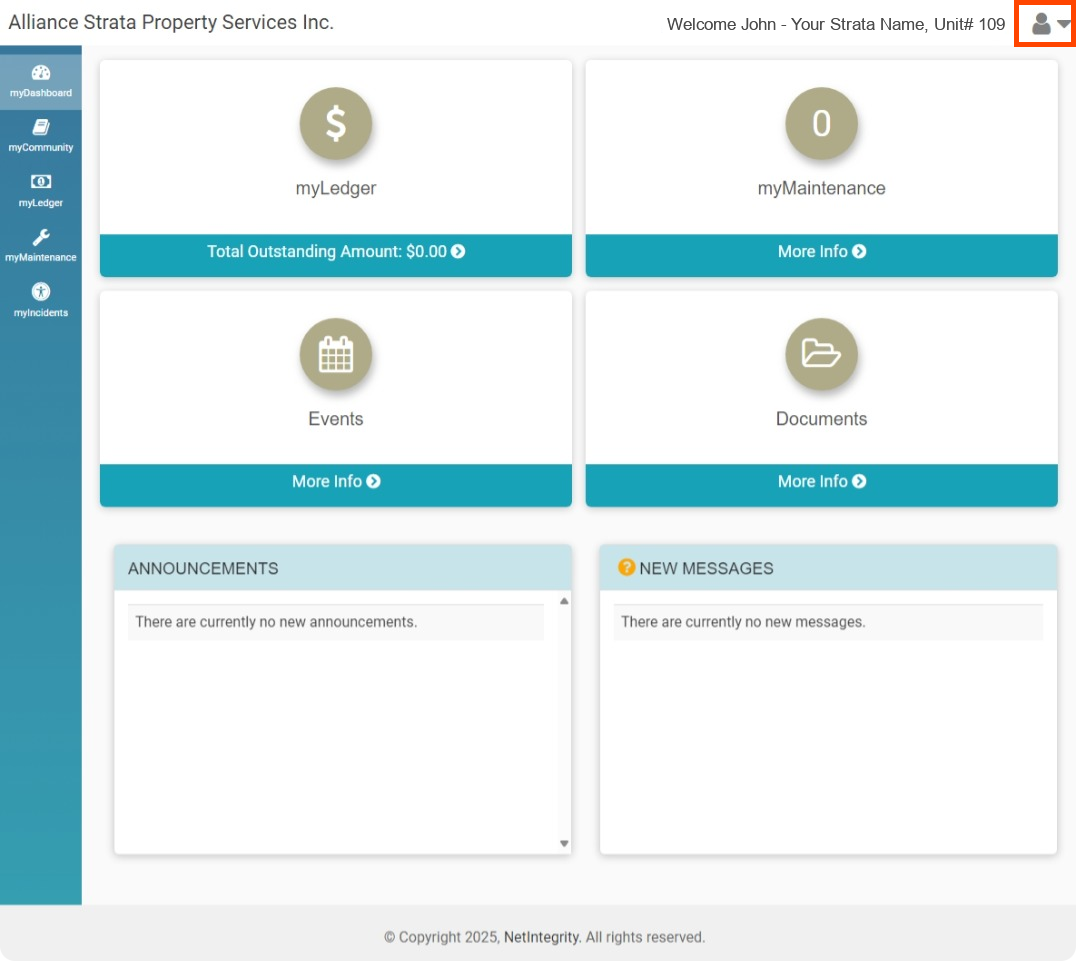
2. Then click from the dropdown
from the dropdown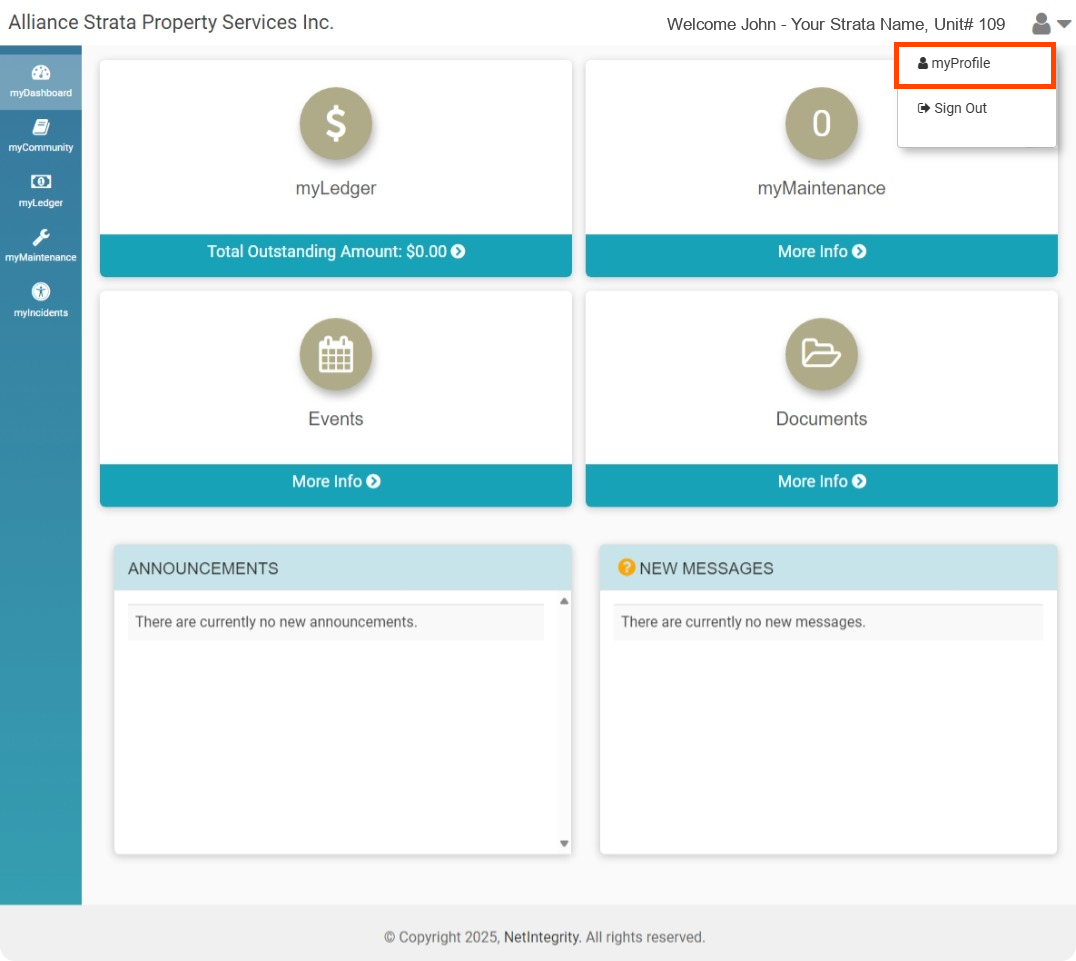
3. Select  from the options on the left sidebar
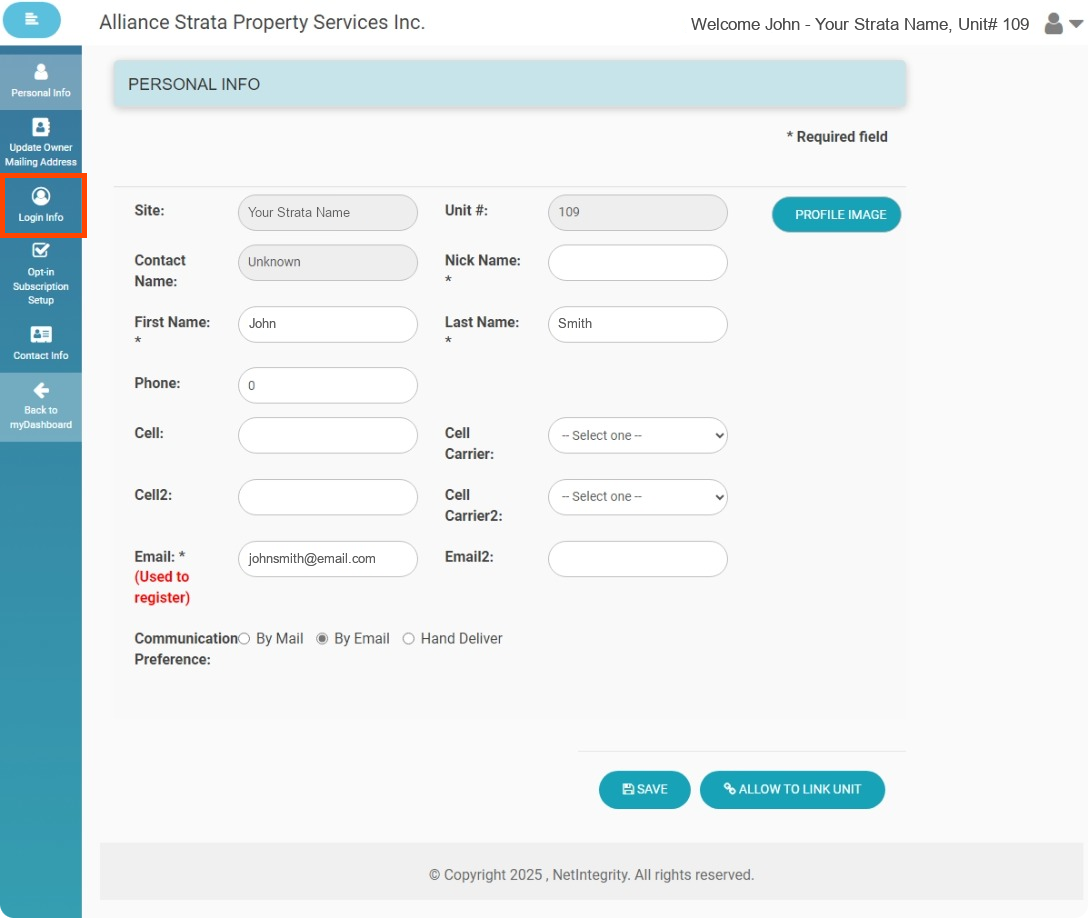
3. Click 
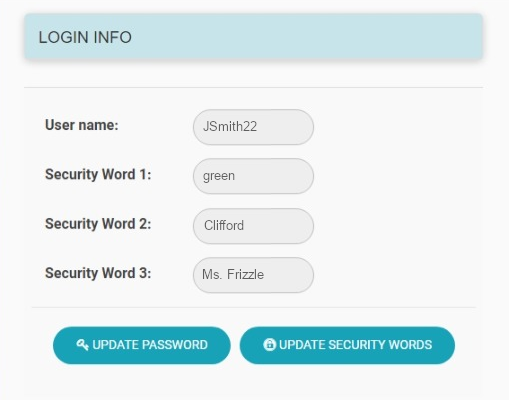
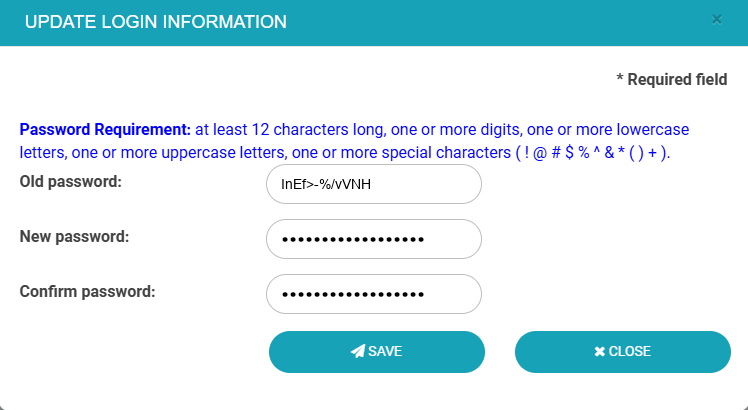
4. Fill in the “Update Login Information” Form
Old Password: Your current password (If it is your first time changing your password it will be your Temporary Password emailed to you during registration)
New Password: Your new password
Confirm Password: Re-enter your new password
Password Requirement: at least 12 characters long, one or more digits, one or more lowercase letters, one or more uppercase letters, one or more special characters ( ! @ # $ % ^ & * ( ) + ).
5. After filling out the form click
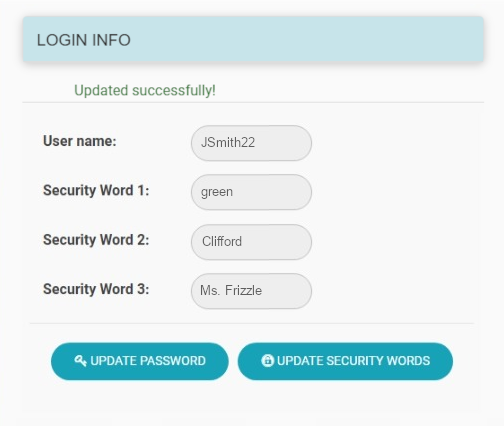
6. If you see Updated successfully! your password has been changed successfully.